Home | JCBid |Software Development | Domain Registration | Hosting | Web Designing | Buy Books | Advertise with JCSearch | Whois | IP Locator |
Add Search | Shopping | Store | Free Blogs | Free GuestBook | Free E-Cards | Free Games | Free Tutorials | Set as Home | Add to Favorite | Suggest a Site | Directory Our Portfolio | Terms of service | Free quote | Tell a Friend | Special Offer | Job Opportunities | games | Usenet Groups

 
Updated Blogs
Why Every Small Business Needs Reliable Web Hosting
Computer Support Blog
Essensial Software for Web Based Support
HP Server and Desktop
More .....


JCBid Auction

WINEGARD SW-0012 ANTENNA MOUNT (GABLE END MOUNT)
Seller: in2012
Jasmine Computers Inc.
JCBid Auction

PYLE PDWR63 INDOOR/OUTDOOR WATERPROOF ON-WALL SPEAKERS (6.5")
Seller: myshop

72 Pack water balloons display Case of 108 pieces
Seller: superdeals


JasmineCorp Directory
 Check Domain Name:
.  

Your first web page with HTML

This lesson will teach you how to correct the things given in Assignment.

Assignment: Please make these changes in your code.
1. The first column of inside table is bigger than other two columns. Need to make that adjustment by decreasing/increasing <td width>
2. Add <font></font> tags to change the look of text color, size, face etc. (Note: you can do it side by side when you add text, paragraph etc.)
3. Align "Heading" text at the center of the page.
4. Remove border from main table. <table border="0">
5. Add <cellpadding="10"> in main table tag to create space between table border and text.
6. Add Welcome image and button instead of text. Please download these images.


Let's copy our final Html code and paste here.
Let's make the changes.
1. Adjust <td width> Make all the <td>
width as 25% so it should look alike.
2. Add font with all the text. this font color is blue. But you can change color in different places according to your need.
<font color="#000080" size="2" face="arial">This is our basic font tag </font>
3. Align text 'Heading' at the center <td align="center" >
4. Remove border: change table border 1 to 0 <table border="0">
5. Add Cellpadding


<html>
<head>
<title>
My First Page.
</title>
</head>
<body>

<table border="0" width="100%" cellpadding="10">
<tr>
<td valign="top" width="15%" rowspan="3" bgcolor="#3E3030"><font color="white"
size="2" face="arial">Button<br>Button 1<br> Button 2<br>Button 3<br> Button 4</font></td>
<td width="80%" bgcolor="#3E3030" align="right"><font color="white"
face="arial"><h2> Welcome </h2></font>
<tr><td bgcolor="#9B7373">&nbsp;</td></tr><tr><td align="center"><h3><font color="#800000"
face="arial">Heading</font></h3>
<!-- Add divider -->
<hr width="200">
<!-- Add Paragraph-->
<p align="left">
<font color="#000080" size="2" face="arial">HTML is a very essential part of web designing. If you want to master web designing, drawing tables, adding pictures etc. this tutorial is a must. If you do not know how to use HTML codes in your web site this tutorial will teach you in easy steps. This tutorial will walk you thru with the help of lots of demo and step by step instruction. </font></p>
<!-- Add table-->

<table border="1" width="75%"><tr><td width="25%"><font color="#000080" size="2" face="arial">row 1 / col 1</font></td><td width="25%"><font color="#000080" size="2" face="arial">col 2</font></td><td width="25%"><font color="#000080" size="2" face="arial">col 3</font></td></tr>
<tr><td
width="25%"><font color="#000080" size="2" face="arial">row 2 / col 1</font></td><td width="25%"><font color="#000080" size="2" face="arial">col 2</font></td><td width="25%"><font color="#000080" size="2" face="arial">col 3</font></td></tr></table>

<!-- Add breaking space--><br><br>
<!-- Add URL/link-->
<a href="link.htm">
<font color="#4040FF" size="2" face="arial">Link</font></a>
<!-- Add breaking space--><br><br>
<!-- Add Image-->
<font color="#000080" size="2" face="arial">Image </font><img src="http://jasminecorp.net/pimage.jpg">
<!-- Add breaking space--> <br>
<!-- Add Email link-->
<!-- Add breaking space--> <br>
<a href="mailto:anita@yahoo.com">
<font color="#4040FF" size="2" face="arial">Email Me</font></a>
<!-- Add breaking space--> <br>
<p align="center">________________________________________________ <br>
<!-- Add breaking space--> <br>
<!-- Add copyright-->
<font color="#000080" size="2" face="arial">Copyright &copy; 2003 Jasmine Computers Inc.</font></p>

</td></tr> </td>
</tr>
</table>
</body>
</html>

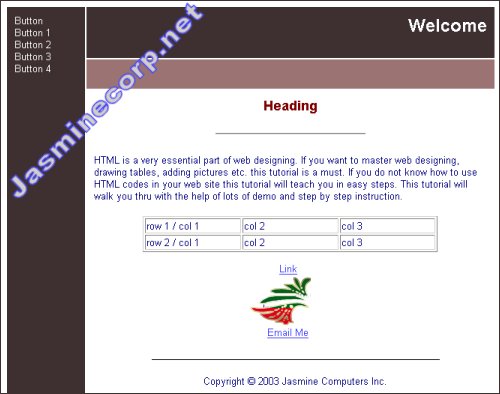
Your page should now look like this


6. Add image "Welcome" and "button".
Use <img src> tag to add image.


PSP Tutorial Index || HTML Tutorial
DreamWeaver Tutorial
If you have any questions please send us email

--------------------------------------------------


Click here to subscribe for Jasminecorp's product News.

Copyright© 1998 by Jasmine Computers Inc.